HP Sprocket Portable Photo Printer Review 2026: Is This Worth It?
Phones hold thousands of photos. Most of them stay locked inside the screen forever. The HP Sprocket wants to change that. This small printer turns your favorite shots into real prints in under a minute. You can stick them in a journal, on a wall, or inside a card.
This review covers everything you need to know in 2026. You will learn how the printer works, what it prints, and how it compares to rivals. You will also see the real strengths and the honest weak spots.
By the end, you will know if the HP Sprocket fits your needs and your budget. Keep reading to get the full picture before you buy.
Key Takeaways
- The HP Sprocket prints 2×3 inch photos on sticky backed ZINK paper. There is no ink needed. The color crystals sit inside the paper itself.
- The printer is smartphone sized and pocket friendly. It weighs very little and slips into a bag or large pocket with ease.
- You connect through Bluetooth and the free HP Sprocket app. The app adds filters, stickers, frames, text, and collage layouts.
- Print quality is good but not perfect. Colors look soft, and some users notice a pink tint on older units over time.
- Each print takes around 40 to 60 seconds, and the battery handles about 30 to 35 photos per charge.
- The Sprocket is best for fun, journaling, and scrapbooks. It is not made for gallery grade or professional prints.
What Is the HP Sprocket Portable Photo Printer?
![HP Sprocket Portable Photo Printer (2nd Edition) – Instantly print 2x3' sticky-backed photos from your phone – [Luna Pearl] [1AS85A]](https://techfixai.com/wp-content/plugins/aawp/public/image.php?url=YUhSMGNITTZMeTl0TG0xbFpHbGhMV0Z0WVhwdmJpNWpiMjB2YVcxaFoyVnpMMGt2TkRGR1UwWlhRM2x1VGt3dWFuQm58MTc5MjkxOTgzMg= "HP Sprocket Portable Photo Printer Review 2026: Is This Worth It? 2")
- Instant photos on the go – Easily print your favorite adventures on 2x3" sticky-backed...
- Get the print party started – Now you can connect multiple devices so you and your...

Last update on 2026-06-21 / Affiliate links / Images from Amazon Product Advertising API
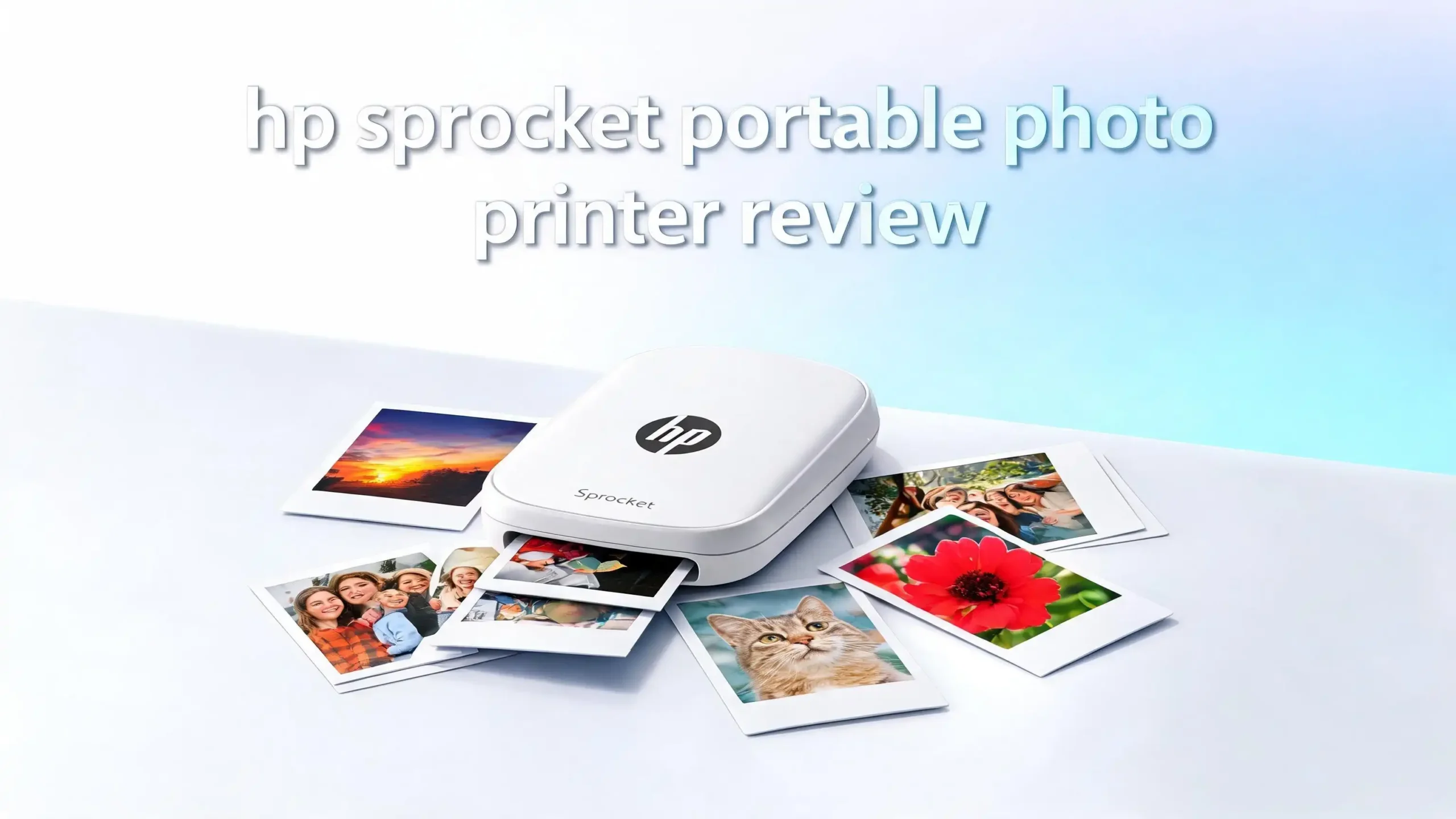
The HP Sprocket is a small instant photo printer. It prints photos straight from your phone. You do not need a computer or a cable. The whole thing is about the size of a thick smartphone. It fits in one hand with room to spare.
The printer makes 2×3 inch prints on special ZINK paper. ZINK stands for Zero Ink. The paper holds tiny color crystals inside it. Heat activates these crystals and forms the image. This means you never buy ink cartridges or toner. You only buy paper.
Every print has a sticky back. You peel off the backing and stick the photo anywhere. People use them for journals, planners, fridge doors, and gift tags. This sticker feature is a big reason the Sprocket stays popular with crafters and students.
The current lineup includes the 2nd Edition for 2×3 prints. HP also sells the Sprocket Select for slightly larger 2.3×3.4 inch prints. Both share the same core idea. They turn phone memories into real, physical photos within seconds.
The printer comes in fun colors like Luna Pearl, Black Noir, and Blush. Style matters here, since many buyers carry it around to events and parties. The Sprocket aims for casual, joyful printing rather than serious photography work.
HP Sprocket Design and Build Quality
The HP Sprocket looks clean and modern. The body is a flat rectangle with rounded corners. The top cover lifts off so you can load paper. Most models use a smooth matte finish that resists fingerprints.
The size is the main selling point. The 2×3 model is about as wide as a phone and a bit thicker. It slides into a jacket pocket, a purse, or a backpack with ease. You can carry it to trips, weddings, and birthday parties without any strain.
The build feels light but plastic. Do not expect a heavy premium feel here. The Sprocket trades sturdiness for low weight. It handles normal daily use fine. Still, you should avoid dropping it on hard floors, since the shell can crack.
Controls stay simple. There is a power button, a status light, and a charging port. The light tells you when the printer is busy, low on paper, or low on battery. Newer units charge over USB, while some older ones use micro USB.
The paper tray holds about ten sheets at a time. You load a stack along with the blue calibration card. The card goes on the bottom of the stack. This setup takes under five minutes for first time users. The whole design favors speed and ease over fancy features.
How Does the HP Sprocket Work?
The HP Sprocket uses ZINK printing technology. ZINK means there is no ink, no toner, and no ribbon. The magic lives inside the paper. Each sheet holds layers of heat sensitive color crystals.
When you send a photo, the printer heats the paper in a precise pattern. The heat wakes up the crystals. Cyan, magenta, and yellow tones appear in the right spots. This forms your full color image in one pass. The process feels almost like magic the first time you see it.
You start by opening the free HP Sprocket app. You pick a photo from your phone gallery, Instagram, Facebook, or Google Photos. You can edit the shot before you print it. Then you tap print and the photo feeds out of the slot.
Bluetooth handles the connection between the phone and the printer. You pair them once, and they remember each other. No WiFi network is needed, which is great for travel and outdoor events. You can print in a park, a car, or a campsite.
The calibration card keeps colors accurate. You load a fresh one with each new paper pack. This step helps the printer read the new batch of paper correctly. Skipping it can lead to off colors or poor results.
HP Sprocket Print Quality Review
Print quality is the part most buyers care about. The honest answer is that the Sprocket prints look good for fun, not for framing. ZINK photos have a casual, soft style. They suit journals and scrapbooks well.
Colors come out bright but a little muted. Skin tones, greens, and blues look pleasant. Reds and deep shadows can lose detail. Some images print slightly darker than they look on screen. You may need to brighten photos in the app first.
The resolution sits around 300 dpi. This is fine for small 2×3 prints viewed up close. Do not zoom in expecting crisp pro detail. The dots are visible if you study them. At normal viewing distance, they look perfectly nice.
One common complaint stands out. Some users report a pink or reddish tint that builds up over time. Reddit threads mention this on older units. Keeping the rollers clean with the calibration card helps reduce the problem. Storing paper in a cool dry place also keeps colors true.
Every print has a thin white border. There is no full borderless option. The sticky back paper is durable too. HP says prints resist water, smudges, and tears. This makes them last on surfaces that get handled often.
Top 3 Alternatives for HP Sprocket Portable Photo Printer
The HP Sprocket is great, but it is not the only choice. Some printers offer sharper photos, while others print larger sizes. Here are three strong options worth your attention in 2026. Each one beats the Sprocket in at least one area.
The Polaroid Hi-Print Gen 2 uses dye sub technology instead of ZINK. This means sharper, more vivid prints with smoother color. It also makes peel and stick photos. If print quality is your top goal, this one shines.

- FIND IT, PRINT IT, STICK IT: It’s just that simple with Polaroid Hi-Print. Customize and...
- DYE-SUB TECHNOLOGY: The Polaroid Hi-Print utilizes innovative dye-sub cartridge technology...
Last update on 2026-06-21 / Affiliate links / Images from Amazon Product Advertising API
The Canon Ivy 2 is a fellow ZINK printer with a slim, stylish body. It pairs fast and prints clean 2×3 stickers. Canon fans often praise its reliable app and color tuning. It makes a fine direct rival to the Sprocket.

- Print and customize your photos directly from your smartphone or tablet via the Canon Mini...
- No ink needed! The IVY 2 Mini Photo Printer uses ZINK (Zero Ink) technology, which...
Last update on 2026-06-21 / Affiliate links / Images from Amazon Product Advertising API
The Kodak Step rounds out the list. It also uses ZINK paper and sticky backs. Many users feel its colors stay more accurate than the Sprocket over time. It is a budget friendly pick for journals and crafts.

- STEP UP YOUR PRINTING GAME. KODAK Step Printer Connects to Any iOS or Android Device [Via...
- AMAZING ZERO-INK TECHNOLOGY. ZINK 2” x 3” Sticky-Back Paper with Embedded Dye Crystals...
Last update on 2026-06-21 / Affiliate links / Images from Amazon Product Advertising API
Each of these printers has loyal fans. Your best choice depends on whether you value price, color, or print size most.
HP Sprocket App Features Explained
The HP Sprocket app is the heart of the system. You cannot print without it. The good news is that the app is free for iOS and Android. It does far more than just send photos.
You can edit each shot before you print. Adjust brightness, contrast, and crop with simple sliders. Add text, frames, stickers, and emoji. These tools turn a plain photo into a fun keepsake in seconds.
The app supports collage layouts. You can fit two or four photos onto one print. This is handy for events where you want many memories on a small sticker. Templates make the process quick and clean.
There is also a tile print mode. You can split one large image across several sheets. Then you arrange them into a poster on your wall. This trick lets a tiny printer make big visual impact.
The app connects to your social accounts too. Pull photos from Instagram, Facebook, and Google Photos with a tap. Some versions include an AR feature that adds hidden video to prints. Scan the photo later and the video plays back. The help section inside the app is thin, but the Sprocket website fills the gaps.
HP Sprocket Battery Life and Charging
Battery life decides how useful a portable printer really is. The HP Sprocket runs on a built in rechargeable battery. You do not need to plug it into a wall while printing. This freedom is the whole point of a pocket printer.
On a full charge, the Sprocket prints around 30 to 35 photos. That number covers most parties and trips. Heavy users may want a power bank as backup. The battery drains faster if you print many photos back to back.
Charging happens over a USB cable. Most current units charge in about 90 minutes to 2 hours. The box usually includes the cable but not a wall plug. You can use any standard phone charger or a laptop port.
The printer has a sleep mode to save power. It powers down when idle to protect the battery. A quick tap of the power button wakes it again. This keeps the unit ready without wasting charge between uses.
One tip helps a lot. Charge the printer fully before an event. A low battery can slow prints or cause errors. Keep the cable in your bag for long days out. With smart charging habits, the Sprocket keeps up with a busy day.
HP Sprocket Paper and Running Costs
ZINK paper is the only ongoing cost. There are no cartridges to replace. You buy paper in packs of 20, 50, or larger boxes. Bigger boxes lower the price per print, so bulk buying saves money.
Each sheet costs roughly 50 cents to a dollar. The price drops sharply with the 150 sheet box. For casual users, a 50 pack lasts a long time. For heavy crafters, the big box is the smart pick.
The paper has a sticky back as standard. You peel the backing and stick the photo anywhere. HP also sells different finishes, including premium and frame ready options. This lets you match the paper to your project.
You can use some third party ZINK paper too. Canon ZINK paper often works in the Sprocket, though colors may shift slightly. HP brand paper gives the most reliable results. Stick with HP if color accuracy matters to you.
Store paper carefully for best output. Heat and humidity can ruin the crystals. Keep packs sealed in a cool dry spot. Always load the matching calibration card with each new pack. Good storage keeps your prints sharp and your costs low.
HP Sprocket Connectivity and Compatibility
The HP Sprocket connects through Bluetooth. This keeps the setup simple and wire free. You pair the printer with your phone once. After that, they link up automatically each time.
The app supports both iOS and Android. There is no PC or Mac printing option. This is a phone first device by design. Apple and Android users both get the same core features.
Multiple people can connect at parties. The app uses a queue and personalized lights. This helps a group share one printer smoothly. Each person sees when their print is next in line.
Bluetooth range covers a normal room with ease. You do not need a WiFi network at all. This makes the Sprocket perfect for travel and outdoor use. You can print far from any router or signal.
Setup takes only a few minutes. Download the app, turn on the printer, and pair. Most users get their first print within five minutes. The smooth, simple connection is one of the printer’s best traits.
HP Sprocket Pros and Cons
Every product has strong points and weak points. The HP Sprocket is no different. Here is a clear, honest summary to guide your choice. Weigh these against what you plan to print.
The pros are easy to love. The printer is tiny, light, and truly portable. It needs no ink, only paper. The sticky back prints are fun and durable. The app offers rich editing tools and social media links. Setup is fast and beginner friendly.
The cons are worth knowing too. Print quality is good but not pro grade. Colors can look soft or dark. Some units show a pink tint over time. The cost per print adds up with heavy use. There is no PC printing and no borderless option.
Battery life is fine but not endless. About 30 prints per charge suits casual use. Power users may need a backup battery. The plastic build feels light rather than premium.
So who should buy it? The Sprocket fits students, crafters, and memory keepers. It is ideal for journals, gifts, and party fun. It is not the right tool for serious photographers. Match your goals to this list, and the choice becomes clear.
HP Sprocket vs Polaroid Hi-Print: Which Wins?
Buyers often compare the Sprocket with the Polaroid Hi-Print. Both are pocket printers for 2×3 photos. The big difference is the printing technology. This shapes the look of every print.
The HP Sprocket uses ZINK paper. The Polaroid Hi-Print uses dye sublimation. Dye sub lays color in smooth layers. The result is sharper detail and richer tones. Many reviewers say the Polaroid wins on pure image quality.
The Sprocket fights back on price and flexibility. Its app has more creative tools and AR features. It also tends to cost less up front. The sticky back paper makes it a craft favorite.
The Polaroid costs more per print in many cases. Its cartridges combine paper and color in one unit. This raises the running cost but improves the output. You pay more for better looking photos.
So which one wins? Choose the Polaroid Hi-Print for top print quality. Choose the HP Sprocket for fun, low cost, and creative app tools. Both are solid. Your priorities decide the better fit for you.
Who Should Buy the HP Sprocket?
The HP Sprocket suits a clear type of user. It is built for fun and memories, not perfection. Knowing this helps you decide fast. Here is who gets the most value from it.
Students and journal lovers adore it. The sticky back prints fit planners and scrapbooks perfectly. You can decorate pages with real photos in seconds. The small size makes it easy to carry to class or trips.
Party hosts and travelers love it too. You can print group photos on the spot. Guests stick them in cards or take them home. The wire free design works anywhere, even outdoors.
Gift makers find it handy. Print small photos for cards, tags, and crafts. The fun colors and easy app make creative projects simple. Kids and adults both enjoy the process.
Who should skip it? Serious photographers should look elsewhere. The Sprocket cannot match dye sub or instant film quality. If you want frame ready prints, choose another printer. But for casual, joyful, on the go printing, the Sprocket is a great match.
HP Sprocket Tips for Best Results
A few simple habits improve your prints a lot. Most quality problems come from small mistakes. Follow these tips and your photos will look their best every time.
Always use the calibration card. Load a fresh card with each new paper pack. This helps the printer read the paper batch. Skipping it leads to off colors and poor results.
Brighten photos in the app first. ZINK prints can come out a bit dark. A small boost to brightness fixes this. Adjust contrast too for sharper looking images.
Keep the printer and paper clean. Dust on the rollers causes streaks and tints. Run the calibration card to clean the path. Store paper sealed in a cool dry place.
Charge fully before big events. A low battery slows prints and risks errors. Carry the cable as backup. Use HP brand paper for the most reliable color. These small steps make a real difference in your final prints.
Frequently Asked Questions
Does the HP Sprocket need ink?
No. The HP Sprocket uses ZINK paper with color crystals built inside. You never buy ink, toner, or ribbons. You only need to buy more ZINK photo paper when you run low.
How long does each photo take to print?
Each print takes around 40 to 60 seconds on most models. The larger Sprocket Select can take a bit longer. The photo feeds out fully formed, so there is no waiting for it to develop.
Can I use the HP Sprocket without WiFi?
Yes. The Sprocket connects through Bluetooth, not WiFi. You can print anywhere, even with no internet. This makes it great for travel, parks, and outdoor events.
Why do my prints look pink or dull?
This often comes from dirty rollers, old paper, or skipped calibration. Run the blue calibration card to clean the path. Use fresh HP paper and store it in a cool dry spot for better color.
Does the HP Sprocket work with iPhone and Android?
Yes. The free HP Sprocket app supports both iOS and Android. There is no PC or Mac printing option. You control everything from your phone through the app.
How many photos can it print per charge?
A full charge prints about 30 to 35 photos. Heavy use drains it faster. Carry a power bank or the charging cable for long days and big events.
Are the prints really stickers?
Yes. Every standard ZINK print has a peel off sticky back. You can stick photos in journals, on walls, or on gifts. This is one of the most loved Sprocket features.