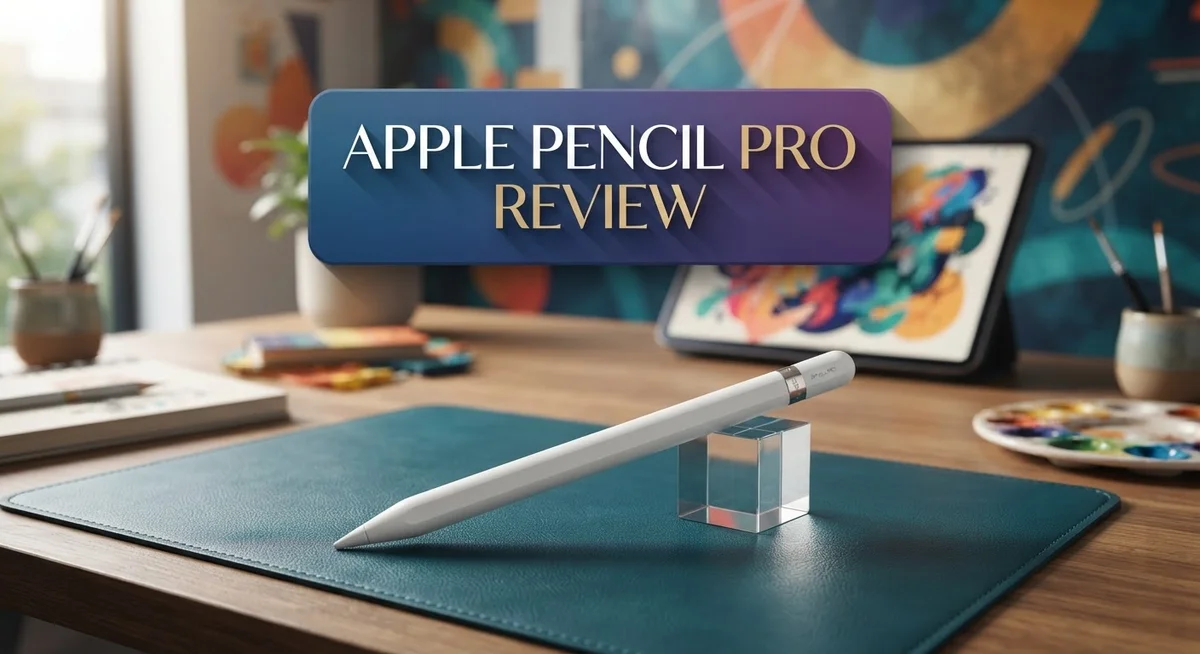
Apple Pencil Pro Review 2026: Is It Worth Buying?
Apple Pencil Pro brings smart tech to your fingertips. It feels natural. It responds fast. It makes creativity simple.
This stylus offers 4,096 levels of pressure sensitivity. It reads tilt and pressure like a real pencil. Every stroke feels accurate and smooth.
You get new tricks too. The squeeze function opens tool menus instantly. The barrel roll gesture changes brush angles with a twist of your wrist.
Haptic feedback adds a satisfying click to every action. Hover capability lets you preview marks before touching the screen. These features make digital art and notes feel more natural.
It snaps onto compatible iPads with a strong magnetic grip. No wires. No fuss. Just pick it up and start creating.
This review breaks down what makes the Apple Pencil Pro stand out. We look at its design, performance, and real world use. You will see how it compares to other styluses on the market.
Is it the right tool for your workflow? Let’s find out together.
In a Nutshell
Here is the quick rundown of the Apple Pencil Pro for busy readers.
-
Barrel roll gesture lets you shade and angle lines like a real pencil. A built in gyroscope tracks every twist of your wrist.
-
The squeeze function brings up tool options fast. You pinch the pencil and pick a color or tool without touching the screen.
-
Hover capability shows a preview of your mark before you draw. This helps you plan each stroke with confidence.
-
The design stays light in your hand. Long sketching sessions feel comfortable and natural.
-
This stylus works best with select iPad models. Check your device before you buy.
-
Compared to Logitech Crayon or ESR Geo Digital Pencil, the Apple Pencil Pro offers deeper gesture control. Casual note takers may not need every feature though.
-
Artists and designers gain the most from this tool. Students who just jot notes might find simpler styluses enough for their needs.
Key Features and Specifications
The Apple Pencil Pro combines precision engineering with intelligent software to create a stylus that responds to how you actually work. Pressure sensitivity reaches 4,096 levels, which means you can create fine lines or bold strokes with complete control. The tilt detection works across multiple angles, giving you the natural feel of drawing with a real pencil.
Gesture controls set this stylus apart from basic alternatives. The squeeze function lets you access tools instantly without lifting your hand from the screen. You simply squeeze the barrel, and your favorite brushes, erasers, or color palettes appear. The barrel roll feature uses a built in gyroscope to detect rotation, so you can twist the pencil to shade or adjust line angles just like a traditional drawing tool.
Hover capability gives you a preview before you commit to a mark. This feature shows exactly where your line will land, reducing mistakes and speeding up your creative process. The haptic feedback engine provides tactile confirmation with each action, making the digital experience feel more grounded and responsive.
Weight and balance matter for extended use. The Apple Pencil Pro stays lightweight and comfortable, so your hand doesn’t fatigue during long drawing sessions or note taking marathons. The magnetic attachment system works with compatible iPad models, keeping your stylus charged and ready whenever you need it.
The design philosophy focuses on reducing friction between your intent and execution. Every feature exists to get out of your way and let your creativity flow. Whether you’re sketching detailed illustrations, taking handwritten notes, or designing layouts, the tool adapts to your needs.
This stylus works best when paired with iPad models that support its full feature set. Older iPad generations or non Apple tablets won’t unlock all the advanced capabilities. For basic note taking or simple sketching, the Apple Pencil Pro might offer more features than you need. However, for serious creative work and professional applications, the combination of precision, gestures, and feedback creates a compelling package.

- WHY APPLE PENCIL PRO — Apple Pencil Pro is loaded with intuitive features for ultimate...
- COMPATIBILITY — Apple Pencil Pro works with iPad Pro 13-inch (M5 and M4), iPad Pro...

Last update on 2026-09-17 / Affiliate links / Images from Amazon Product Advertising API
Design, Build Quality, and Ergonomics
The Apple Pencil Pro feels natural in your hand from the moment you pick it up. Its lightweight construction keeps fatigue away during long creative sessions. The barrel stays slim without feeling fragile.
Grip and comfort matter when you’re sketching for hours. Apple designed this stylus with a matte finish that resists fingerprints and sweat. Your fingers stay in control even during intense detail work. The weight distribution feels balanced, letting you focus on your art instead of the tool itself.
The squeeze gesture changes how you work. A gentle squeeze on the barrel brings up your tool menu instantly. No need to tap the screen or hunt through menus. Your workflow stays smooth and uninterrupted. This feature alone transforms how quickly you switch between brushes, colors, and effects.
Haptic feedback gives physical confirmation to every action. When you squeeze or tap, you feel a subtle vibration. This sensory response builds confidence in your strokes. You know the stylus registered your input. That connection between intention and execution matters for precision work.
The barrel roll gesture lets you rotate the stylus to angle your brush or pencil tip. Artists love this feature because it mimics real drawing tools. You don’t need to use the iPad’s rotation controls. Your hand does the work naturally.
Build quality stands out immediately. The materials feel premium without being delicate. The connection points are solid. Magnets hold it firmly to your iPad without wobbling. You can toss it in a bag without worry.
The flat edge on one side prevents rolling off tables. This small design choice shows Apple thought about real world use. The stylus stays where you put it.
Compatibility matters here. The Apple Pencil Pro works with select iPad models. Check your device before purchasing. Not every iPad supports all the advanced features like hover and barrel roll. The stylus connects seamlessly through magnetic attachment, so charging cables stay out of your way.
Performance and Precision for Creative Work
The Apple Pencil Pro excels at delivering precision that creative professionals demand. The stylus captures 4,096 pressure levels, which means your strokes respond exactly as you intend them. This sensitivity matters most when you’re working on detailed illustrations, digital paintings, or architectural drawings.
Tilt recognition adds another layer of control. You can angle the pencil just like a traditional art tool. Shading becomes natural. Blending feels intuitive. The stylus understands your hand position in real time.
Gesture controls transform your workflow speed. The squeeze function appears when you need it most. Instead of hunting through menus, you squeeze the barrel to access brush sizes, colors, or opacity settings. Your focus stays on the canvas, not the interface.
The barrel roll gesture lets you rotate your brush angle without lifting the pencil. This feature eliminates awkward hand movements. Professional artists appreciate how this mimics traditional drawing techniques. You work faster and more fluidly.
Hover capability changes how you approach each mark. Before you touch the screen, the pencil shows you exactly where your stroke will land. This preview prevents mistakes on complex projects. You see the brush size and opacity in real time. Precision planning becomes possible.
Haptic feedback confirms every action. You feel a subtle vibration when you squeeze, rotate, or activate tools. This physical response keeps you connected to your work. The feedback feels natural, never jarring or distracting.
The lightweight design matters during long creative sessions. Your hand stays fresh. Fatigue doesn’t set in as quickly. The flat edge prevents accidental rolling, which keeps your tool within arm’s reach.
For digital artists and designers, this stylus eliminates friction between your ideas and execution. The combination of pressure sensitivity, gesture controls, and instant feedback creates a seamless creative experience. You spend less time fighting with your tools and more time creating.
Note that compatibility remains important. The Apple Pencil Pro reaches its full potential only with specific iPad models. Basic note-taking doesn’t require these advanced features. Creative professionals, however, find the performance gains substantial and worth the investment in their workflow.
Top 3 Alternatives
Stylus Pro Pen

- Wide Compatibility with iPad Models - The stylus pencil for ipad is designed to work...
- Precision & Accuracy - This pen stylus is designed for pinpoint precision, making it ideal...
Last update on 2026-09-17 / Affiliate links / Images from Amazon Product Advertising API
The Stylus Pro Pen offers excellent precision for digital artists and note-takers. This pen delivers smooth ink flow and responds quickly to your touch. The pressure sensitivity works well across most tablets and drawing apps.
You get a comfortable grip that reduces hand fatigue during long sessions. The battery lasts for hours on a single charge. The pen connects easily via Bluetooth to your device without complicated setup steps.
Wacom One Stylus

- Pressure sensitivity and natural tilt support for more precision and control
- The cordless, battery-free pen never needs to be charged and is light and comfortable to...
Last update on 2026-09-17 / Affiliate links / Images from Amazon Product Advertising API
Wacom One Stylus brings professional-grade performance to casual creators. This stylus features natural pressure levels that feel like traditional drawing tools. The response time is nearly instant, so you won’t experience lag when sketching or writing.
The pen works with Wacom tablets and many Android devices. It has a lightweight design that feels natural in your hand. Battery life stretches across multiple days of regular use. The stylus recognizes palm rejection, so your hand won’t accidentally mark the screen.
Samsung S Pen

- FINE PRECISION. POINTIED PRESSURE: Let loose your world, thoughts, and imaginations at the...
- HANDY TOOLS, ALL AT YOUR SERVICE: Instantly have at your service an array of tools via Air...
Last update on 2026-09-17 / Affiliate links / Images from Amazon Product Advertising API
The Samsung S Pen integrates seamlessly with Samsung Galaxy tablets and phones. This stylus offers fine-tip control for detailed work and everyday tasks. The pressure sensitivity gives you 4,096 levels of response for smooth, nuanced strokes.
Air actions let you control your device without touching the screen. You can hover over text to preview content or use gestures to navigate apps. The pen charges quickly and holds power for extended periods. The S Pen fits naturally in your palm and delivers consistent performance across Samsung’s ecosystem.
Gesture Controls and Advanced Functionality
The gesture controls on the Apple Pencil Pro transform how you interact with your iPad. These features go beyond basic stylus functionality to create a more natural creative experience.
The squeeze gesture works by applying gentle pressure on the barrel. Your iPad responds instantly to this input. You can assign squeeze to different tools like eraser, color picker, or brush size adjustment. This means you switch between functions without lifting your pencil or reaching for menus. Your workflow stays uninterrupted and your focus remains on your work.
Barrel roll gives you physical control over brush angles and tool orientation. Rotate the pencil in your hand, and your iPad recognizes the movement through built in gyroscope technology. Digital artists appreciate this feature because it mimics how you’d naturally angle a real pencil or brush. No need to use on screen controls to adjust your tool angle.
The hover capability lets you preview your mark before you actually make it. Move the pencil above your screen, and you see exactly where your stroke will land. This proves invaluable for precise work where placement matters. You gain confidence knowing you can see the outcome before committing.
Haptic feedback provides physical confirmation for every gesture you perform. When you squeeze the barrel, you feel a subtle vibration. When you hover over interactive elements, feedback confirms your positioning. This sensory response creates a more connected feeling between your hand and the screen. Your brain processes this feedback as validation, making interactions feel more intentional.
These advanced controls work seamlessly together during extended creative sessions. You might squeeze to access the eraser, barrel roll to adjust your brush angle, and hover to preview your next stroke all within seconds. The learning curve is surprisingly short because the gestures feel intuitive.
Keep in mind that full functionality requires compatible iPad models. Older iPad generations may support some features but not all gesture controls. Check your specific iPad model to confirm which advanced functions are available. This ensures you get the complete experience these sophisticated controls offer.
iPad Compatibility and Magnetic Attachment
The Apple Pencil Pro connects to your iPad through a magnetic attachment system that’s both practical and elegant. This magnetic design works with specific iPad models, so compatibility is your first consideration.
When you attach the Apple Pencil Pro to your iPad, the magnet holds it securely along the edge. The connection is strong enough that your stylus won’t slip off during travel or daily use. This magnetic system also charges your pencil wirelessly, which means you never need cables or charging docks.
The compatible iPad models include iPad Pro (11-inch and 12.9-inch with M1 or later), iPad Air (11-inch and 13-inch with M1 or later), and iPad Pro 7th generation or newer. If you own an older iPad model, the Apple Pencil Pro won’t attach magnetically. You can still use it via Bluetooth, but you’ll lose the convenient magnetic charging feature.
Magnetic attachment matters for your workflow because it keeps your stylus always within reach. The pencil stays put in your bag, on your desk, or attached to your iPad while you work. You don’t waste time searching for your stylus or hunting for a charger.
The flat edge design works perfectly with the magnetic system. One side of the Apple Pencil Pro is flat, which aligns with the magnetic strip on compatible iPads. This flat edge also prevents your pencil from rolling away when you set it down on tables or desks.
Before purchasing, verify that your iPad model supports magnetic attachment. Older iPad models won’t benefit from this feature, though they can still pair with the stylus through standard Bluetooth. The magnetic connection adds real convenience to your daily creative work.
The attachment system feels premium and reliable. The magnet engages smoothly when you bring the pencil close to your iPad. You’ll notice the satisfying snap as it locks into place, confirming that charging has begun automatically.
Pros and Cons
Pros
- Delivers pixel perfect precision with 4,096 pressure sensitivity levels for detailed creative work
- Squeeze and barrel roll gestures let you adjust tools without lifting the pencil from your screen
- Hover capability previews your mark before you commit, reducing mistakes and improving workflow speed
- Haptic feedback gives instant physical confirmation for every action you take
- Lightweight design keeps your hand fresh during long creative sessions without fatigue
Cons
- Requires compatible iPad models (iPad Pro M1 or later, iPad Air 11 or 13 inch) so older devices won’t work
- Third party styluses offer similar basic note taking features at a lower entry point
- Not a necessary upgrade if you only use your iPad for simple note taking and basic tasks
- The advanced gesture features only work on supported iPad models, limiting functionality on older hardware
Who Should Buy It
The Apple Pencil Pro works best for people who create digital art, design graphics, or take detailed notes on their iPad. If you spend hours drawing, sketching, or editing photos, this stylus gives you the precision and control you need.
Professional designers and digital artists benefit most from the advanced gesture features. The squeeze function and barrel roll capability let you change tools without breaking your workflow. You stay focused on your creative work instead of hunting through menus.
Students and note takers find value in the hover feature. You see exactly where your mark will land before you touch the screen. This preview function reduces mistakes and speeds up your note taking process.
The haptic feedback appeals to anyone who wants tactile confirmation during their work. Every squeeze, roll, and tap gives you physical feedback. This makes the experience feel more natural and responsive compared to styluses without this technology.
iPad Pro and iPad Air users with M1 or later models should check compatibility first. Your device needs magnetic attachment support for full functionality. If you have an older iPad, the Apple Pencil Pro won’t work with your device.
People who already own third party styluses should ask themselves one question: do you need the advanced gesture features? Basic note taking works fine with cheaper alternatives. The squeeze and barrel roll gestures are where the Apple Pencil Pro stands apart from other options.
Professionals who bill by the hour appreciate tools that save time. Faster workflows mean more completed projects. The advanced controls help you work smarter and finish faster.
If you use your iPad for casual browsing, email, and light note taking, you probably don’t need this stylus. A basic option handles these tasks without extra features.
Creative professionals with compatible iPads get the most benefit from this purchase. You get precision, responsive gestures, and physical feedback that enhances your creative process. The investment makes sense if you use your iPad daily for serious creative work.
Final Verdict
The Apple Pencil Pro stands out as a strong tool for creative work on iPad. It brings smart features together in one smooth package.
Compared to alternatives like the Logitech Crayon or ESR Geo Digital Pencil, this stylus offers deeper gesture control. The squeeze and barrel roll functions give you more ways to interact with your apps.
Metapen A14 and Zagg styluses cover basic writing needs well. But they don’t match the same level of tool switching speed or tactile response you get here.
The Tinymoose Pencil Pro Ultra works across multiple devices, which is a nice bonus. Still, it lacks the tight integration this pencil has with Apple’s own software.
If you already create digital art often, this stylus fits your workflow naturally. The tools respond fast and feel natural in hand.
For casual users who just jot quick notes, a simpler stylus might do the job just fine. You may not need every advanced feature packed into this device.
Build quality feels solid. The pencil holds up well during daily use without feeling fragile or cheap. This matters if you carry your iPad around often.
The overall software integration also deserves credit. Apple built this pencil to work smoothly with iPadOS, so updates and features tend to arrive without extra setup steps.
Long term, this stylus should keep pace with new iPad software updates. That gives it staying power beyond just today’s feature set.
In short, this pencil suits people who value precision and speed in their creative tools. It rewards users who lean on gestures and quick tool switches often.
If your needs are simple, other styluses on the market can still serve you well. But for serious creative work, the Apple Pencil Pro earns its spot as a top pick.
Final take: choose this pencil if you want a complete, well rounded tool built for iPad. Skip it if your needs stay basic and simple.
Frequently Asked Questions
Does the Apple Pencil Pro work with all iPad models?
No, it doesn’t. The Apple Pencil Pro works only with newer iPad models. You need an iPad Pro with M1 chip or later, or an iPad Air with 11 or 13 inch screen (M1 or later). If you own an older iPad, this stylus won’t connect to your device.
Check your iPad’s chip generation before buying. Older models simply lack the required hardware support.
What makes the squeeze gesture useful?
The squeeze function lets you change tools instantly. You press the pencil barrel, and your current tool switches without lifting the tip from the screen. This saves time during creative work and keeps your focus on the canvas.
Digital artists and designers use this feature constantly. It eliminates the need to tap menus or reach for buttons while drawing.
Is the barrel roll feature worth learning?
Yes, if you create art or design. The barrel roll lets you rotate your canvas by twisting the pencil itself. Your hand stays natural, and you avoid awkward finger movements on the screen.
Casual note takers won’t miss this feature. Professionals who draw find it becomes second nature quickly.
How does hover mode improve my workflow?
Hover shows you exactly where your mark will land before you touch the screen. You see a preview of your brush stroke, line, or text placement. This reduces mistakes and speeds up your work significantly.
It’s especially helpful for precise work like graphic design or detailed illustration. You waste less time fixing placement errors.
Should I upgrade from a basic stylus?
That depends on your needs. If you take quick notes or write occasionally, a basic stylus works fine. If you create digital art, design graphics, or take detailed notes regularly, the advanced gestures and hover feature will improve your speed and accuracy noticeably.